HTML Execution
Your Adventure in Building Your First Website Starts Here!
Today is a big day! We’re about to launch our very first basic website, and we’ll start with a classic phrase: "Hello, World!"
Why "Hello, World!"?
In the world of programming, "Hello, World!" is more than just text. It’s a tradition — a symbolic first step, and a joyful celebration of beginning your coding journey. Even in HTML, it's the perfect way to begin!
What Will Our First Website Do?
Our first HTML webpage will simply display the text "Hello, Coders!". That’s it! But don’t underestimate it — this small step opens the door to big achievements.
Let’s Dive In: Setting Up VS Code
If you haven’t already set up your editor, open Visual Studio Code (VS Code) on your computer. We’re now ready to write our very first lines of HTML and bring them to life!
Creating a New Folder
Inside VS Code, click "Open Folder" and create/select a folder for your
project.
For example: html-tutorial.
Next, click the "New File" icon and name the file index.html.
This will be your main webpage file.
Pasting the Code
Now that your file is ready, copy and paste this HTML code into index.html:
     <!DOCTYPE html>
     <html lang="en">
     <head>
        <title>My First Website</title>
     </head>
     <body>
        <h1>This is heading.</h1>
        <p>This is paragraph.</p>
     </body>
     </html>
Going Live with Live Server
To view your page in the browser, click the "Go Live" icon in the bottom-right of VS Code. It will open your website in a new browser tab.
If you don’t see "Go Live", make sure you’ve installed the Live Server extension (covered earlier).
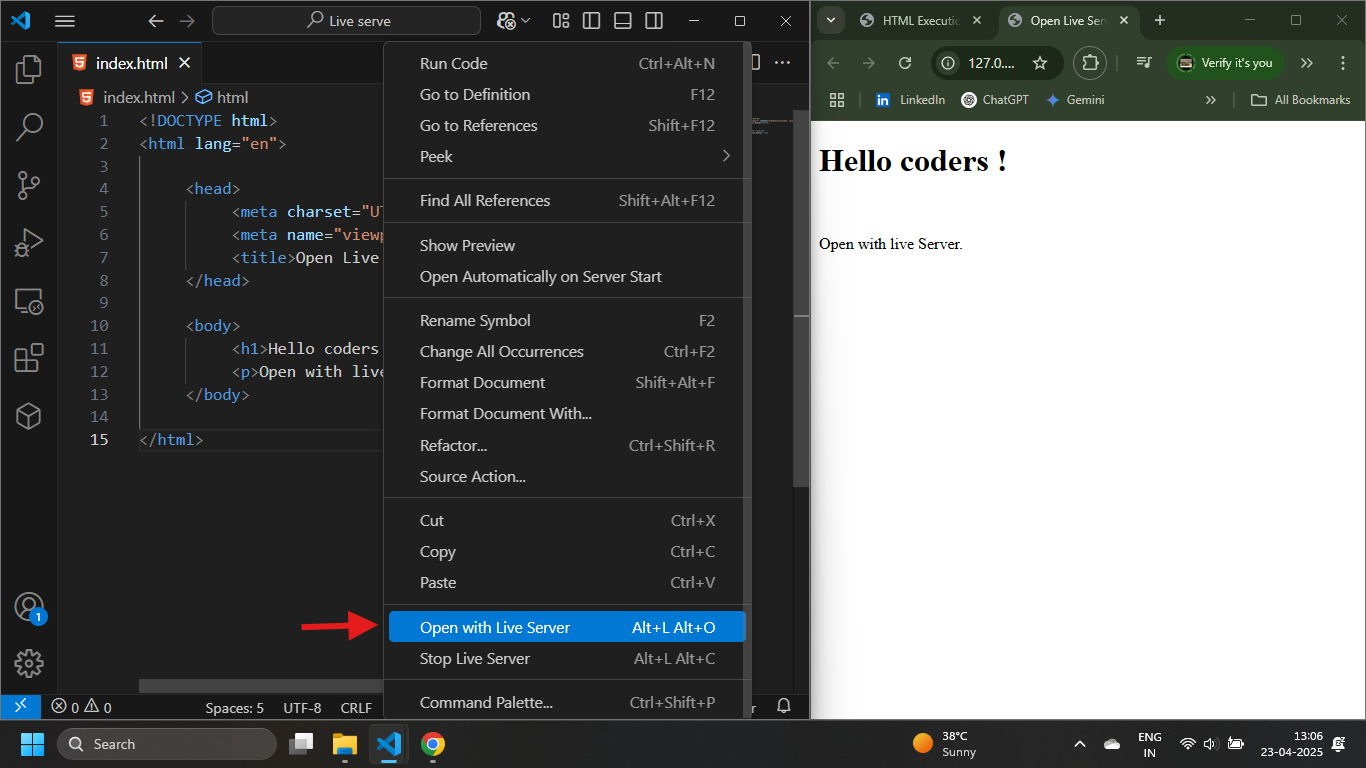
(This image shows the "Go Live" button in the bottom-right corner of VS Code)
Your First Website is Live!
Congratulations! If you followed the steps, your very first website showing "Hello, Coders!" is now up and running!
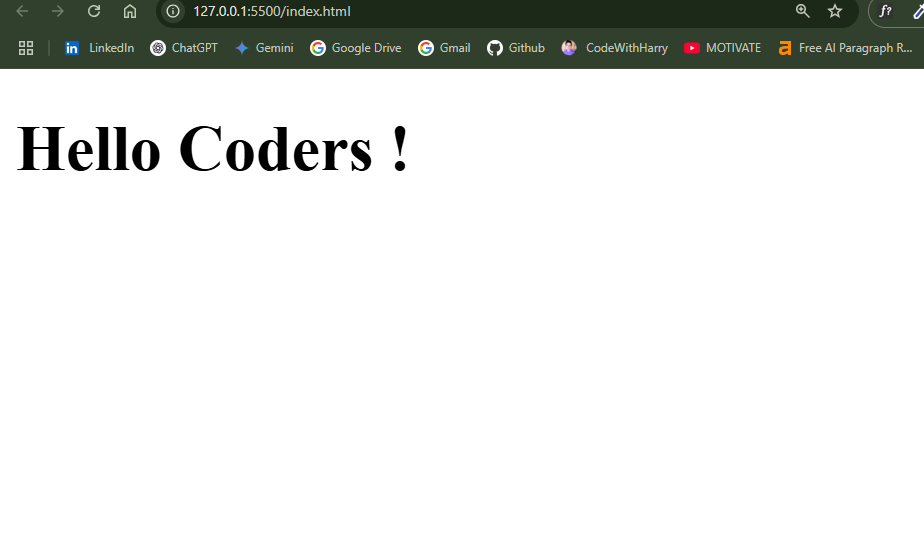
(This image shows a browser displaying "Hello, Coders!")
Live Preview in VS Code
You can also preview your HTML directly in VS Code using the Preview extension. Click the 🔍 icon (if available) to view your output without opening the browser.
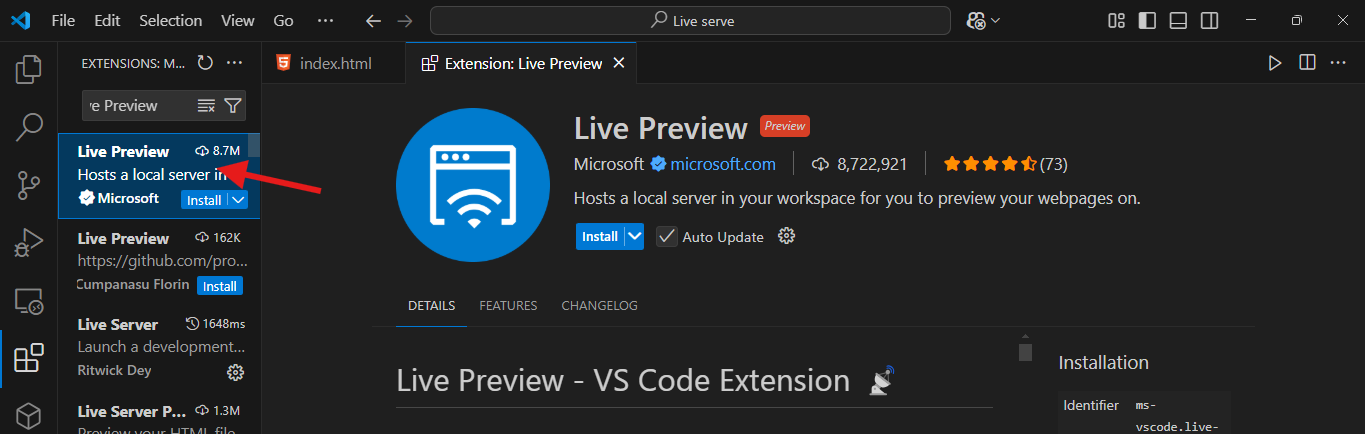
(This image shows the preview icon within VS Code)
This feature is perfect for practicing HTML side-by-side — code on one side, output on the other. It’s incredibly helpful for beginners!
So yes, you can view HTML pages without even needing to open a separate browser. The live preview tool in VS Code makes the HTML learning process smoother and more interactive.
HTML Document Structure
An HTML document uses special instructions called tags written inside
<>.
These tags help the browser understand how to display your content.
Let’s look at a simple structure of a basic HTML file:
     <!DOCTYPE html>
     <html lang="en">
     <head>
     <meta charset="UTF-8">
     <meta name="viewport" content="width=device-width, initial-scale=1.0">
         <title>My First Website</title>
     </head>
     <body>
         <h1>Hello, Coders!</h1>
     </body>
     </html>
Let's Understand the Parts
<!DOCTYPE html>– Tells the browser this is an HTML5 document.<html>– The root of the web page. Everything is inside this tag.<head>– Metadata: title, encoding, and links to other files.<title>– Text shown on the browser tab.<body>– The main visible content of the web page.
How the Title Appears in the Browser
Don’t worry if it seems complex — we’ll practice this repeatedly until it becomes second nature.
Here’s another simple example:
     <!DOCTYPE html>
     <html lang="en">
     <head>
        <title>Page Title</title>
     </head>
     <body>
        <h1>This is a heading</h1>
        <p>This is a paragraph.</p>
        <p>This is another paragraph.</p>
     </body>
     </html>
Almost every website follows this structure. The content between the <body>
tags is what’s
visible.
Visual Representation of an HTML Document
<!DOCTYPE html>– Declares the HTML version.<html>– Wraps the full document content.</html>– Marks the end of the HTML document.<head>– Holds metadata, links, and title.</head>– Ends the head section.<title>– Sets the page's title on the browser tab.<body>– Contains visible elements like text, images, and buttons.</body>– Ends the body section.
How This Appears in a Web Browser
     <!DOCTYPE html>
     <html lang="en">
     <head>
        <title>My First Website</title>
     </head>
     <body>
        <h1>This is heading.</h1>
        <p>This is paragraph.</p>
     </body>
     </html>
(This video shows a browser tab titled "Open live server" with a heading and paragraph below)
In the browser, the tab will show the text from the <title> tag.
The white content area will show the content inside the <body>.
In the next section, we’ll explore HTML page structure in detail.